
Views: 220 Author: Site Editor Publish Time: 2026-01-07 Origin: Site


Content Menu
● Understanding Plastic Materials
>> Step 2: Assign a New Material
● Configuring the Plastic Material
>> Step 3: Basic Material Settings
>>> Base Color
>>> Specular
>>> Roughness
>> Step 4: Adding Transparency
>> Step 6: Subsurface Scattering
>> Step 7: Fine-Tuning the Material
● Troubleshooting Common Issues
>> Issue 1: Material Looks Too Flat
>> Issue 2: Transparency Not Working
>> Issue 3: Texture Not Appearing
Creating realistic plastic materials in Autodesk Maya can significantly enhance the visual quality of your 3D models. This guide will walk you through the process of creating a plastic material using Maya's Arnold renderer, covering everything from basic settings to advanced techniques.
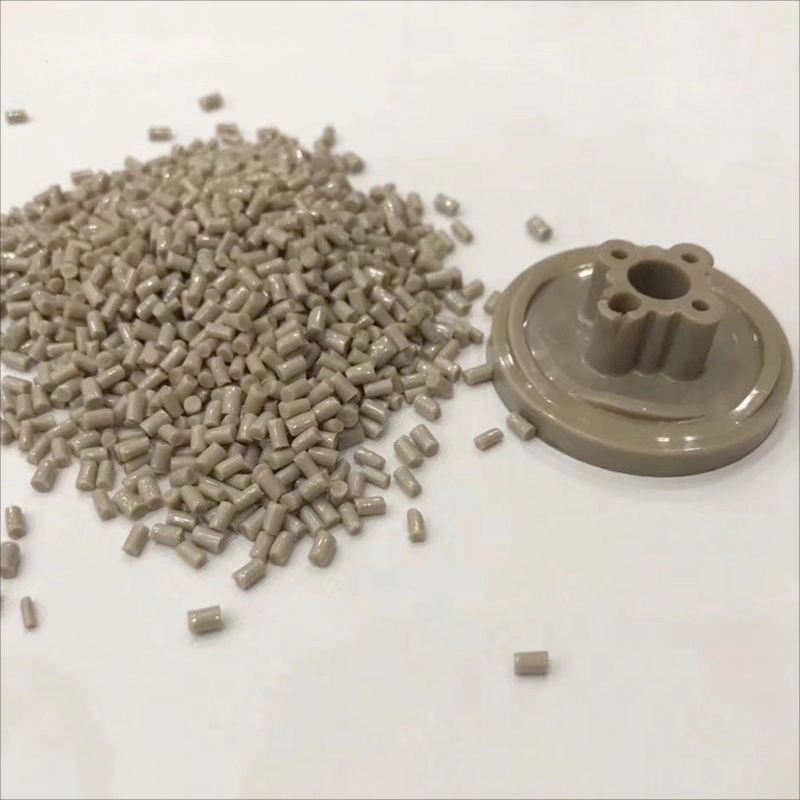
Before diving into the creation process, it's essential to understand the characteristics of plastic materials. Plastics can vary widely in appearance, but they generally share some common traits:
- Color: Plastics can be vibrant or muted, depending on the type and use.
- Transparency: Some plastics are transparent or translucent, allowing light to pass through.
- Reflection: Plastics often have a glossy finish, reflecting light in a way that can create highlights.
- Roughness: The surface texture can range from smooth to rough, affecting how light interacts with the material.
Start by creating the object you want to apply the plastic material to. This could be anything from a simple sphere to a complex model. Use the polygon modeling tools in Maya to shape your object as desired.
1. Select Your Object: Click on the object in the viewport.
2. Right-Click: Choose "Assign New Material" from the context menu.
3. Select Arnold Shader: Choose `aiStandardSurface` from the list of materials. This shader is versatile and ideal for creating realistic materials.
Once you have assigned the `aiStandardSurface` shader, you can start configuring its properties to mimic plastic.
- Set the Base Color: Choose a color that represents the type of plastic you want to create. For example, a bright red for a toy or a muted gray for a more industrial look.
- Increase Specular Weight: Set the Specular weight to around 1.0 to give the material a shiny appearance.
- Adjust the IOR (Index of Refraction): Set the IOR to about 1.5, which is typical for plastics.
- Set Roughness: Adjust the roughness value to control how glossy the surface appears. A value between 0.1 and 0.3 is often suitable for plastic materials.
If you want to create a transparent or translucent plastic:
1. Enable Transmission: Set the Transmission weight to 1.0. This allows light to pass through the material.
2. Adjust the Transmission Color: Choose a color that matches the plastic's transparency. For example, a light blue for a clear plastic.
To enhance realism, you can add textures to your plastic material.
1. Create Texture Maps: Use image editing software to create or find texture maps that represent the surface of plastic. Common maps include:
- Diffuse Map: For color details.
- Bump Map: To simulate surface imperfections.
- Roughness Map: To control the glossiness across the surface.
2. Connect Texture Maps: In the `aiStandardSurface` shader, connect your texture maps to the appropriate slots:
- Connect the Diffuse map to the Base Color.
- Connect the Bump map to the Bump Mapping slot.
- Connect the Roughness map to the Roughness slot.
For certain types of plastic, especially those that are slightly translucent, you may want to add subsurface scattering.
1. Enable Subsurface Scattering: In the `aiStandardSurface` shader, find the Subsurface section.
2. Set Subsurface Color: Choose a color that matches the base color of your plastic.
3. Adjust the Weight: Set the Subsurface weight to a low value (around 0.1 to 0.3) to achieve a subtle effect.
After setting up the basic properties, you may want to fine-tune the material:
- Experiment with Different Colors: Try different base colors and see how they affect the overall look.
- Adjust Roughness and Specular: Play with these values to find the perfect balance for your specific plastic type.
- Render Tests: Regularly render your scene to see how the material looks under different lighting conditions.
Lighting plays a crucial role in how materials appear. Use a three-point lighting setup or HDRI lighting to enhance the realism of your plastic material. Ensure that your lights are positioned to create highlights and shadows that complement the plastic's reflective properties.
Once you are satisfied with the material and lighting, it's time to render your scene:
1. Open the Render Settings: Go to the Render Settings window.
2. Select Arnold Renderer: Ensure that Arnold is selected as your renderer.
3. Adjust Render Quality: Set the quality settings to high for the best results.
4. Render the Scene: Click the render button and wait for the final image to be generated.
If your plastic material appears flat, check the following:
- Ensure that your roughness value is not too high.
- Make sure your lighting setup is adequate to create highlights.
If the transparency is not rendering correctly:
- Check that the Transmission weight is set to 1.0.
- Ensure that the object is not opaque in the object properties.
If your texture maps are not showing up:
- Verify that the texture files are correctly linked in the shader.
- Check the UV mapping of your object to ensure the textures are applied correctly.
Creating a realistic plastic material in Maya involves understanding the properties of plastic, configuring the right shader settings, and using textures effectively. By following the steps outlined in this guide, you can achieve stunning results that enhance your 3D models.

1. What is the best shader to use for plastic in Maya?
- The `aiStandardSurface` shader is recommended for creating realistic plastic materials.
2. How can I make my plastic material look more realistic?
- Use texture maps for color, bump, and roughness, and adjust the specular and roughness settings.
3. What is subsurface scattering, and do I need it for plastic?
- Subsurface scattering simulates light passing through a material. It is useful for translucent plastics but not necessary for all types.
4. How do I create a transparent plastic material?
- Set the Transmission weight to 1.0 and adjust the Transmission color to achieve the desired transparency.
5. Why does my plastic material look flat?
- Ensure proper lighting and adjust the roughness and specular settings to create highlights and depth.
Hot Tags: China, Global, OEM, private label, manufacturers, factory, suppliers, manufacturing company


